What It Does
There are two co-host workflows: a continuous voice companion in cohost.html, and manual dock actions that send approved lines to cohost-overlay.html.
Dock Controls
When the stage overlay is connected, right-click a chat message in the dock and choose Co-host. The dock can read the message, ask the AI for an answer, or create a light roast draft.
AI Stage Overlay
The overlay shows the avatar, speech bubble, and optional browser text-to-speech audio. This is the browser source you put in OBS.
Private Chat Bot
Answer and Light Roast use the configured LLM provider through the Private Chat Bot bridge. Read does not require AI.
Multimodal Co-host
cohost.html connects to the SSN live chat feed when opened with the same session. Its default context-only mode lets the AI remember recent viewer messages and discuss them when the streamer asks.
Dock Right-click Co-host Setup
- Open the Streaming Chat dock with your session:
dock.html?session=YOUR_SESSION_ID. - Add the AI stage overlay to OBS:
cohost-overlay.html?session=YOUR_SESSION_ID. Add&ttsonly for a text-response workflow. - For AI answers, configure an LLM provider in the popup. For quick testing, choose SSN Hosted Trial LLM, which uses
llm.socialstream.ninja. - Enable Chat Bots and AI services > Chat Bot - Private Interface > Enable private chat bot option.
- Right-click a dock message and select Co-host. The menu is hidden until the stage overlay is detected. Dock message rows do not yet expose this context menu to the keyboard; keyboard users can use the typed message field or voice controls on
cohost.html.
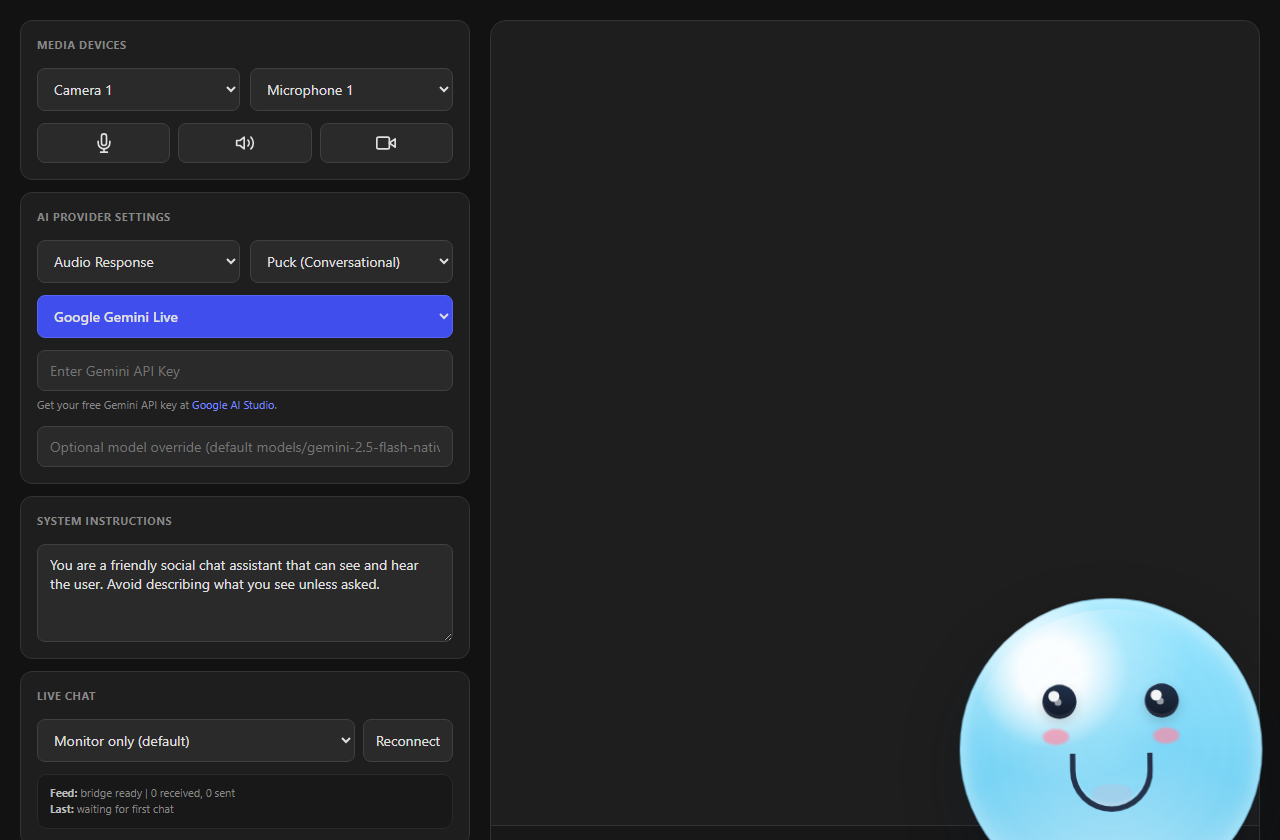
cohost.html control page: pick your camera and microphone, choose an AI provider, set system instructions, and watch the Live Chat status panel.Tip: Use the same session value for the dock and co-host overlay. &tts applies to text-overlay workflows. When native controller audio is active, SSN suppresses duplicate overlay TTS; &forcetts deliberately overrides that protection.
Simple AI Option
llm.socialstream.ninja is available through SSN Hosted Trial LLM as a free simple option for testing while the trial is available.
- Open Chat Bots and AI services > Configure LLM Service Provider.
- Select SSN Hosted Trial LLM (experimental).
- Leave the endpoint, token, and model blank for the default trial setup.
- For longer-term use, use your own token or local provider if the trial service is disabled or rate-limited.
Voice Conversation Support
- OpenAI Realtime: Streams the microphone selected on
cohost.htmldirectly to OpenAI for one native speech-to-speech conversation. The spoken conversation and live-chat context stay in the same co-host session. - SSN Desktop: Uses local Whisper with the microphone selected on
cohost.html. The first use downloads about 42 MB; later transcription runs offline. - Chrome / Chrome extension link: The extension opens the hosted co-host page in a Chrome tab. OpenAI Realtime uses WebRTC with a short-lived client secret; text-response providers use Chrome Speech Recognition and may require internet.
- Other browsers: Voice recognition is not guaranteed. Typed co-host chat, live-chat input, camera/screen input, and configured LLM responses can still work without speech recognition.
With OpenAI Realtime, Diagnostics should show Listening (OpenAI WebRTC). With Desktop Whisper, it should show Listening (Desktop Whisper) and then the recognized text under Heard.
Privacy: the selected microphone, any explicitly selected camera/screen frames, and viewer messages shared by the chosen Live Chat mode are sent to that AI provider. Viewer messages are treated as untrusted context and cannot authorize co-host tools. Open the generated co-host controller link from the popup and keep it private; its private capability expires after 12 hours, is scoped to the current SSN session, and is removed from the address bar after the page loads.
OpenAI Realtime Setup
- In the SSN popup, choose ChatGPT API, add your OpenAI project API key, and use Test selected chat bot.
- Open the generated
cohost.html?session=YOUR_SESSION_IDlink from the popup. Its private, expiring co-host capability authorizes Realtime without enabling the separate Private Chat Bot option. - Select OpenAI Realtime. The standard key stays in the SSN extension/Desktop background; the co-host page receives only a short-lived Realtime client secret.
- Explicitly choose the microphone you talk into, keep Audio Response selected, and press Start Co-host.
- Optional: leave Video source on No Video (the default), or explicitly choose Screen Share or a camera. OpenAI receives one current image with each direct spoken or typed request rather than continuous video; this can add API cost and latency.
- Leave Live Chat on Context only - answer when asked. Ask “What is chat saying?” to have the same spoken AI discuss recent viewer messages.
- Capture the audio from the co-host browser/app in OBS. The native OpenAI voice plays only from
cohost.html;cohost-overlay.htmlreceives the avatar and text, not that same audio stream. When supported, choose a virtual cable under Co-host output for isolated OBS routing. - Keep the stage overlay's speech bubble visible, or provide captions, so the AI response is not available through audio alone.
This uses OpenAI API billing and creates one SSN Realtime conversation over WebRTC, separate from chatgpt.com. Replies are capped at 512 output tokens; Diagnostics shows cumulative token usage and measured first-output latency. OpenAI automatically truncates unplayed audio when the streamer interrupts. SSN retains at most 20 recent chat messages for up to 90 seconds, including paid-support, membership, moderator, event, and source-channel context, then removes that temporary context. SSN checks quiet sessions, reconnects failed transports, and rolls sessions over before the 60-minute limit. A recovered session reapplies the system instructions and performance settings, but starts without the previous spoken conversation.
OpenAI Speed, Quality, And Cost
- Model: Mini is normally faster and costs less. Full quality is more capable and costs more.
- Reasoning effort: Minimal or Low normally lowers response delay and billed output usage. High or Extra high can improve complex answers but may respond more slowly and cost more. Changes apply while connected.
- Turn-taking speed: Fast waits up to about 2 seconds for the end of a thought; Balanced about 4 seconds; Patient about 8 seconds. Fast feels more responsive but can interrupt a natural pause.
- Diagnostics: Latency reports the time from the end of the turn to first text or audio, and separates model delay when possible. Network conditions and provider load can still vary between otherwise similar requests.
Optional Stream Controls
OpenAI Realtime supports the Spotify, OBS scene, and featured-chat tools below. SSN Configured LLM currently supports Spotify only; other co-host providers do not yet expose these tools.
- In the SSN popup, enable only the co-host tools you want: Spotify, OBS scenes, or featured chat.
- For OBS, enter the exact allowed scene names as a comma-separated list and keep
actions.htmlconnected to OBS, or use an OBS browser source with Full Permissions. - On
cohost.html, open Co-host Stream Controls and arm the same tools for that controller. - Ask directly, for example “switch to BRB,” “feature that last message,” or “clear the featured chat.” Viewer messages cannot authorize tools, and only one stream-changing tool runs per direct streamer request.
Tool access is allowlisted, not general API access. OBS can select only scenes named in SSN settings. Feature requests use a recent captured chat message and require the Streaming Chat dock; tool replies report delivery, not proof that OBS or the overlay completed the action.
How The Pages Talk
The dock and overlay use the existing Social Stream session bridge. Messages are sent as overlayNinja payloads and targeted by label.
Read on Co-host: dock sends the selected chat message directly to cohost-overlay.html.
Answer / Light Roast: dock sends a private chatbot request to the SSN background service, shows the AI draft in the dock, then sends it to the overlay only after the streamer clicks Speak.
{
  "action": "cohostOverlay",
  "target": "cohost-overlay",
  "meta": {
    "command": "say",
    "text": "The line the avatar should say",
    "speak": true,
    "emotion": "happy"
  }
}
Available Actions
| Action | Requires | Result |
|---|---|---|
| Read on Co-host | Connected cohost-overlay.html |
Reads the selected chat message on the overlay. |
| Answer | Private Chat Bot + configured LLM or Hosted Trial LLM | Creates a short answer draft for streamer approval. |
| Light Roast | Private Chat Bot + configured LLM or Hosted Trial LLM | Creates a short, playful, PG draft for streamer approval. |
| Speak | Approval panel draft | Sends the approved text to the AI stage overlay. |
| Copy | Approval panel draft | Copies the draft without sending it to the overlay. |
Status And Troubleshooting
- If the Co-host menu is missing, the co-host overlay is not detected in the same session.
- If Answer or Light Roast is disabled, the SSN bridge or Private Chat Bot is not available.
- The primary chat bot overlay toggle is optional and does not enable dock right-click co-host actions.
- If
cohost.htmlis not seeing chat, confirm the URL has the samesessionas the popup and that Live Chat is set to Context, Questions, or All. - Context only currently shares chat with the AI only for OpenAI Realtime. Other providers monitor the feed without injecting it into the model.
- Mute microphone stops audio sent to the co-host. Mute co-host voice, the volume slider, output-device selector, and Stop speaking control playout. Mute shared system audio is separate and appears for screen-capable providers.
- If a stream-control tool is unavailable, enable it in both the SSN popup and Co-host Stream Controls. OBS also needs at least one exact scene name in its allowlist.
- Use Test overlay to send a harmless visible test line, then confirm it appears in the AI Stage Overlay in OBS.
- If the co-host knows chat but stays quiet, that is expected in Context only: ask it what chat is saying. Questions or All speak automatic replies from the co-host page; they do not post those replies into YouTube, Twitch, or Kick chat.
- If Desktop shows Listening (Desktop Whisper) but never fills Heard, confirm the selected microphone is not muted and allow the first model download to finish.
- If Chrome never fills Heard, allow microphone permission, check the operating system's default microphone, confirm internet access, and verify that Chrome Speech Recognition is available.
- If OpenAI Realtime text appears but no audio plays, verify Audio Response, browser audio permissions, and OBS browser/app audio capture. Use
&ttsonly for the separate text-overlay workflow. - If OpenAI Realtime replies are slow, try Mini, Low reasoning, and Fast turn-taking, then compare the Latency line in Diagnostics. Higher reasoning and Patient turn-taking deliberately trade speed for depth or longer pauses.
- If OpenAI Realtime disconnects, leave the co-host running while it retries. Diagnostics identifies the data, peer, provider, or health-check failure. A recovered session keeps the selected system instructions and performance settings but cannot recover the previous spoken conversation.
- If an Answer, Light Roast, or SSN Configured LLM request times out, check that Social Stream is on, the session matches, Private Chat Bot is enabled, and the selected LLM provider is reachable. OpenAI Realtime does not require Private Chat Bot.
- If Local Gemma cannot download its model files from the default asset host, set the asset host to your own mirrored Gemma folder.
- If the hosted trial AI stops responding, it may be disabled or rate-limited; switch to your own token, Ollama, or Custom API.
- If multiple overlays are open, make sure the overlay label matches the dock target. The default label is
cohost-overlay.
Useful URL Parameters
session=YOUR_SESSION_ID- required for the dock and overlay to share a room.ttsorspeak=1- lets the overlay speak with browser TTS.forcetts- allows overlay TTS even when the co-host controller is already playing audio; this intentionally creates a second voice.label=cohost-overlay- sets the overlay target label.name=NinjaBot- sets the display name on the overlay.avatar=https://...- uses a custom avatar image.position=bottom-right- controls stage placement.scale=1.2- scales the overlay.status- shows connection/status text on the overlay.
Design Notes
- For dock/manual text workflows, the overlay is the visual and optional TTS playout source. For native OpenAI voice, capture
cohost.htmlaudio separately; the stage overlay does not replay that same WebRTC audio. - The dock is the control surface, so streamer approval stays off-stream.
- Generated responses are not auto-spoken; the streamer must approve them first.
- Non-standard command details live inside
meta, keeping payloads predictable for overlays and automations.